

MCP Setup
Call hyreflow tools and workflows from any MCP client, no local install.
Your whole tool catalog is exposed over the Model Context Protocol, so a client that can't run shell commands — Claude Desktop, ChatGPT in the browser or its desktop app, and similar chat surfaces — connects instead of installing the CLI. Same engine, same tools, same costs, same credit balance.
Fastest route: open hyreflow.ai/mcp, pick the AI app you use, and copy the prompt into it, or scan the code there with your phone. Your assistant fetches the setup instructions and gives you the steps for your app. The rest of this page is the same steps.
Got a terminal? The CLI is the better fit there: start with the Quickstart.
Connector settings
| Field | Value |
|---|---|
| Name | hyreflow |
| Remote MCP server URL | https://recruit.hyreflow.ai/api/v2/mcp |
| Transport | Streamable HTTP (when the client asks; not SSE, not STDIO) |
| OAuth Client ID | Leave empty |
| OAuth Client Secret | Leave empty |
| Authorization header / bearer token | Leave empty |
Leave any OAuth client-ID/secret fields empty: hyreflow registers the client itself and drives
the whole handshake. Leave token and header fields empty too: a static Authorization header
switches the browser sign-in off and the connection fails. Any MCP-capable client works; the ones
below are the common ones, grouped by what they are.
Two clients are configured by file rather than by a settings screen: Antigravity and Hermes. Antigravity is the only one anywhere that takes a client ID, because it does not register itself; that ID is published below and is the same for everyone. Their two blocks are not interchangeable.
What gates a custom server is the client's own setting, not a plan tier: on the ChatGPT desktop app it is Developer mode, on the web it is the MCPs tab under Settings → Plugins.
Terminal clients complete the handshake against a listener on a loopback port they pick when the flow starts, and hyreflow accepts any port, so there is no redirect URL or port to register.
Chat apps
Claude Desktop
Open Settings → Connectors
Click Add custom connector.Paste in the name and URL
Values from the table above. Skip the advanced OAuth fields, then click Add.Sign in to hyreflow
A browser window opens.Select a workspace
The one Claude may act on.Approve
The connection is live.ChatGPT (web)
Open Settings → Plugins
Then the MCPs tab, beside Plugins and Apps.Add → Connect to a custom MCP
The Add button, top right.Name it, and leave Type on Streamable HTTP
STDIO is for servers running on your own machine.Paste the URL
From the table above. Leave the bearer-token field and both header sections empty, then Save.Leave it on Auto, then Authenticate
Sign in to hyreflow, pick the workspace ChatGPT may act on, and approve.ChatGPT desktop
The desktop app will not accept a custom server until Developer mode is on, which is the one step that differs from the web flow.
Open Settings → Plugins
Developer mode sits at the bottom of that page. Turn it on.Open the Plugins page
The + beside the search field.Fill in the New Plugin dialog
Name it, set Connection to Server URL, paste the URL from the table above, and leave Authentication on OAuth. The advanced OAuth settings can stay untouched.Accept the custom-server warning, then Create
OpenAI has not reviewed the server; the approval screen below is where you decide what it may reach.Connect → Sign in with Hyreflow
Pick a workspace and approve. The connection is live.Grok
No settings screen and no config file — Grok adds the connector itself when you ask it to.
Ask it in the chat
Say: add a new custom MCP called hyreflow at the server URL from the table above.Let it check the catalog
hyreflow is not in the built-in connector catalog, so it adds a custom connector at that URL instead.Sign in on the connect card
It posts a card in the chat. Sign in, pick a workspace, approve.Gemini
The Gemini web app's custom-MCP option is available only to personal accounts in the United States at the time of writing. If you see it, paste the name and URL from the table above; if not, use Antigravity, which is also where Google now directs individual Gemini CLI users.
Coding agents in the terminal
Claude Code
claude mcp add --transport http hyreflow https://recruit.hyreflow.ai/api/v2/mcpThen run /mcp → Authenticate. Sign in, pick a workspace, approve.
Codex
codex mcp add hyreflow --url https://recruit.hyreflow.ai/api/v2/mcpThen run codex mcp login hyreflow. Sign in, pick a workspace, approve.
OpenCode
Works in the desktop app and the CLI. Add to ~/.config/opencode/opencode.jsonc:
{
  "mcp": {
    "hyreflow": {
      "type": "remote",
      "url": "https://recruit.hyreflow.ai/api/v2/mcp",
      "enabled": true
    }
  }
}
OpenCode opens the sign-in on first use. The first connection can take up to a minute.
Hermes
Also configured by file, but Hermes registers itself, so its block carries no client ID — and its keys differ from Antigravity's. The two blocks are not interchangeable.
{
  "mcpServers": {
    "hyreflow": {
      "url": "https://recruit.hyreflow.ai/api/v2/mcp",
      "auth": "oauth"
    }
  }
}
Open Capabilities → Servers
Click New server. Hermes opens anmcp.json editor itself — there is no file on disk to find.Paste the block above
Copy it whole. There is a copy button on hyreflow.ai/mcp.Save
Hermes notes thatmcp.json applies after an MCP reload, and hyreflow appears in the server list marked as needing authentication.Sign in to hyreflow
A browser window opens. Pick a workspace and approve.The Hermes CLI takes the same keys under mcp_servers in ~/.hermes/config.yaml, followed by
hermes mcp login hyreflow.
Goose
Run goose configure, choose Add Extension → Remote Extension (Streaming HTTP), name it
hyreflow and paste the URL. Leave the headers step empty. In Goose Desktop the same fields are
under Extensions → Add custom extension with type Streamable HTTP. Goose opens the sign-in
when the extension first loads.
Editors and IDEs
Cursor
Add to ~/.cursor/mcp.json (global) or .cursor/mcp.json in the project — Cursor Settings →
Tools & MCP → New MCP Server opens it for you:
{
  "mcpServers": {
    "hyreflow": {
      "url": "https://recruit.hyreflow.ai/api/v2/mcp"
    }
  }
}
Cursor lists the server under Tools & MCP; click Login on its row to sign in. Cursor can also install the hyreflow plugin, which bundles the skills; see the plugin repository.
VS Code and GitHub Copilot
Run MCP: Add Server from the command palette, pick HTTP, paste the URL and name it
hyreflow, or add to .vscode/mcp.json in the workspace:
{
  "servers": {
    "hyreflow": {
      "type": "http",
      "url": "https://recruit.hyreflow.ai/api/v2/mcp"
    }
  }
}
Click Start above the server entry. VS Code asks to allow the sign-in, then opens the browser.
Cline
In Cline Desktop, open MCP Servers → Remote Servers, name hyreflow, paste the URL and click
Add Server; a browser tab opens for the sign-in. The same entry by hand, in cline_mcp_settings.json:
{
  "mcpServers": {
    "hyreflow": {
      "type": "streamableHttp",
      "url": "https://recruit.hyreflow.ai/api/v2/mcp"
    }
  }
}Windsurf (Devin desktop)
Windsurf now ships as the Devin desktop app. Open the MCP servers panel from the chat and choose
View raw config, which opens mcp_config.json (%APPDATA%\Devin\mcp_config.json on Windows,
~/.codeium/windsurf/mcp_config.json on macOS and Linux). Add:
{
  "mcpServers": {
    "hyreflow": {
      "serverUrl": "https://recruit.hyreflow.ai/api/v2/mcp"
    }
  }
}
Note the key is serverUrl, not url. Save and click Refresh in the MCP panel; a browser tab
opens for the sign-in.
Zed
Agent panel → ⚙ → Settings → MCP Servers → Add Server: name hyreflow, paste the URL, leave
headers and the OAuth client ID empty. Or add to settings.json:
{
  "context_servers": {
    "hyreflow": {
      "enabled": true,
      "url": "https://recruit.hyreflow.ai/api/v2/mcp"
    }
  }
}
Zed opens the sign-in when the server first connects.
Google Antigravity
Antigravity is configured by file, and it will not register itself, so this is the one client that needs a client ID rather than an empty field. It is the same for everyone and carries no secret.
Paste this whole block into .gemini/config/mcp_config.json in your home directory:
{
  "mcpServers": {
    "hyreflow": {
      "serverUrl": "https://recruit.hyreflow.ai/api/v2/mcp",
      "oauth": { "clientId": "mcp_3c39d0bc0c1f435941f7962f" }
    }
  }
}
Open Settings, then Customizations
Scroll down to Installed MCP Servers.Open the MCP config
It opensmcp_config.json in your editor.Paste the block above
Copy it whole. It nests four deep, and a dropped brace fails with no useful message. There is a copy button on hyreflow.ai/mcp.Sign in to hyreflow
A browser window opens. Pick a workspace and approve.Copy the code back
Antigravity shows a field for the authorization code and finishes the handshake locally.Agent builders
Microsoft Copilot Studio
hyreflow is added to an agent as a tool. Before you start, check the Microsoft side is in place. A company already building agents in Copilot Studio usually has all of it; a new tenant needs an admin for the first two.
-
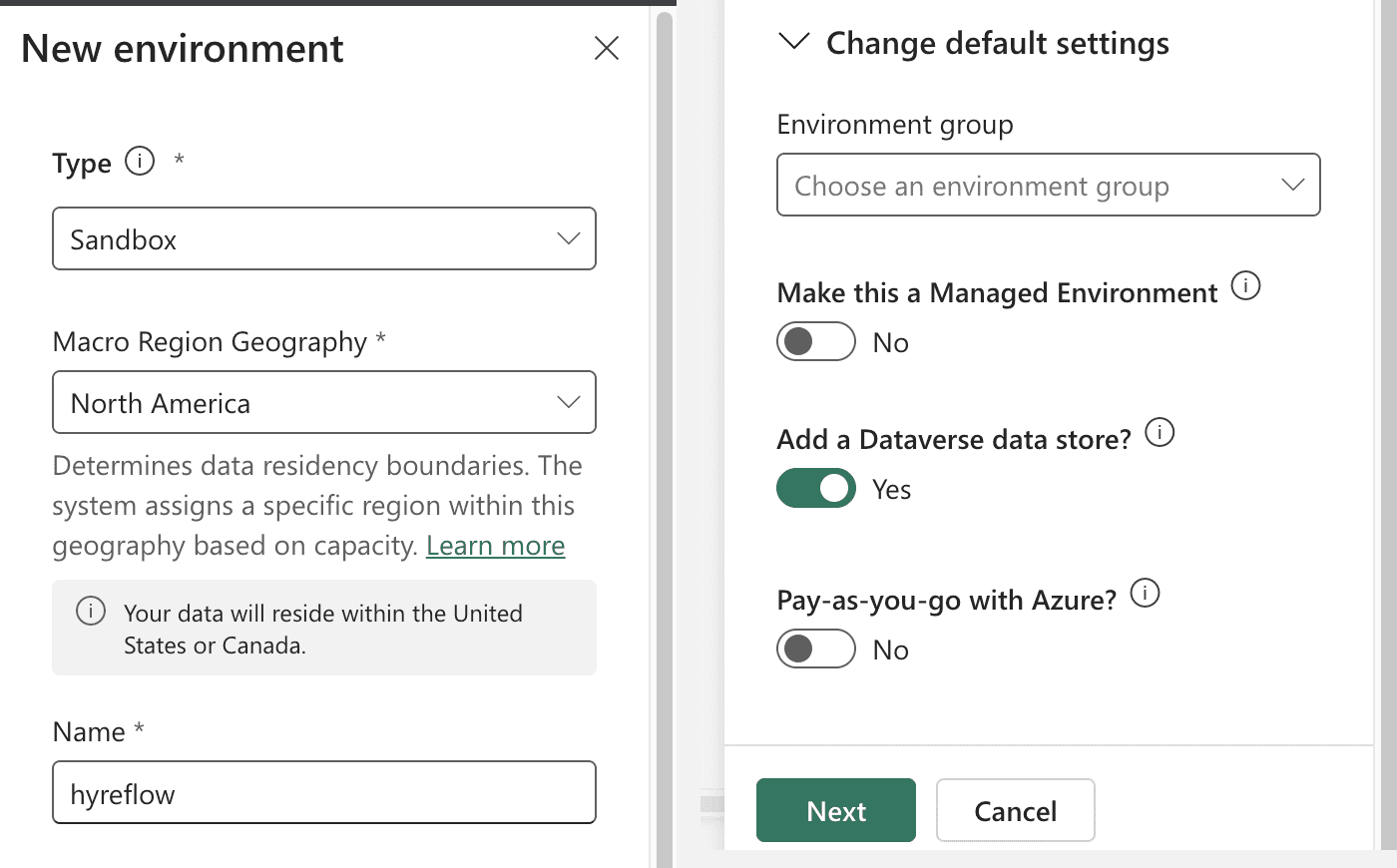
An environment with Dataverse. Agents are stored in Dataverse. If Copilot Studio shows Dataverse isn't set up in this environment, a Power Platform admin creates one: Power Platform admin center → Manage → Environments → New, type Developer or Sandbox, with Add a Dataverse data store on. Then switch to it from the environment picker in Copilot Studio.
-
Rights in that environment. You need the Environment Maker role. If the Solution list is empty when you create the agent, create one first in Power Apps → Solutions → New solution (that needs System Customizer).
-
A Copilot Studio license. Adding tools needs one; the free trial works.
-
Custom connectors allowed. Copilot Studio reaches MCP servers through Power Platform connectors, so a data policy that blocks custom connectors blocks hyreflow too.
Open your agent's Tools page
Wait until the agent has finished setting up; until then the connection step fails with Failed to load connector information. Click Add a tool, then Add new MCP. The MCP onboarding wizard opens.Fill in the server details
Server namehyreflow, Server URL from the table above. For Server description, something like: Recruiting and prospecting tools: source candidates and leads, find work emails and phone numbers, enrich lists, run saved hyreflow workflows. The agent reads it to decide when to call hyreflow.Set Authentication to OAuth 2.0, Type Dynamic discovery
Not API key, not Manual: hyreflow registers Copilot Studio itself, so there is no client ID, secret or URL to type. Click Create, then Next.Create a new connection
Click Create a new connection in the Add tool dialog. Sign in to hyreflow in the window that opens, pick a workspace, and approve. The approval screen names the client Credential Manager, with a callback onglobal.consent.azure-apim.net: that is Copilot Studio.Add to agent
The hyreflow tools are now available to the agent. Check it in the test chat: Call the hyreflow_billing_balance tool to check my credit balance.Publish to Teams and Microsoft 365 Copilot
Publish the agent, open Channels, add Teams and Microsoft Copilot and keep Make agent available in Microsoft Copilot selected. Without that option the agent appears in Teams only. Sharing it with the whole organisation needs an admin's approval.With the tool on end-user credentials, each person who uses the agent is asked to sign in to hyreflow from a card in the chat, and their runs spend the credits of the workspace they approve. If the tool is set to use the maker's credentials instead, everyone acts as the maker and spends the maker's credits.
Before you approve
Three things on the approval screen are worth a glance.
Who you are. The top of the screen says who is signed in, and the connection acts as that person. If it's not you, choose Not you? Switch account and sign in as yourself. One Claude account connects as one Hyreflow person, so teammates who share a Claude account replace each other's connection every time one of them reconnects. Each person should use their own Claude account.
The workspace. The connection is bound to it, its catalog, saved workflows, integrations, and credit balance. Nothing from your other workspaces is reachable through it. Workspaces on a paid plan are listed first and marked paid, and the first of them is selected by default. When you reconnect, the workspace you last approved is already selected. To switch, remove the connector and authorize again.
The callback address. A client running on your machine should show a loopback address like
http://127.0.0.1:3118/callback, or an app-style address such as cursor://…/callback, not
somewhere on the internet. Clients that run in the cloud (Claude, ChatGPT, Grok, Copilot Studio)
show their own callback domain instead, which is expected.
The screen also lists what the connection can do: run any tool in that workspace's catalog, enrich in bulk, run its saved workflows, read run history and the credit balance. Tool, enrichment and workflow runs spend that workspace's credits. There is no read-only variant and no second prompt per tool, so that screen is where to refuse. Deny returns the client an error and mints nothing.
Troubleshooting
No sign-in window opens
Check the client's server entry for an Authorization header, bearer token or API key field that
was filled in. Any static credential disables the browser sign-in; clear it and reconnect. In
Hermes, confirm "auth": "oauth" is present. In Antigravity, confirm oauth.clientId is set.
The client only offers a token or API-key field
hyreflow's MCP server authenticates with a browser sign-in and does not accept a pasted key. Most clients that show a token field also run the browser flow when you leave it empty. If yours does not, use one of the other clients on this page.
The tools do not appear straight after signing in
Some clients (ChatGPT desktop, OpenCode) take up to a minute to fetch the tool list after the first sign-in. Wait, then reopen the client's MCP panel.
The client asks you to sign in again
Tokens expire and are refreshed silently; a sign-in prompt usually means the client dropped its stored refresh token, most often after an update. Sign in again; nothing on the hyreflow side changed.
Sign-in fails with 'Unknown client or mismatched redirect URL'
The client introduced itself in a way hyreflow does not recognise yet: usually a client-metadata URL on a host we have not allowlisted, or a callback address in a form we do not accept. Tell us which client and its version; adding one is a small change on our side.
Spend protection
The server checks spend itself, without relying on the agent to check first:
- Confirmation for expensive runs. A tool or enrichment call estimated above 50 credits, or above a quarter of your remaining balance, does not run on the first request. The server returns the estimate, your current balance and a confirmation token; the agent should show you the cost and, once you approve, repeat the same call with that token. Cheap calls run straight through. Details in the MCP reference.
- A per-session spend cap, if you want one. A connection works as one session until it sits unused for 24 hours, then its next call starts a new session with a fresh cap. So a per-session cap set on the billing page covers each stretch of work that connection does. Hyreflow does not impose a default: the cap is yours to choose, and raising one mid-session is not something the client can do for you.
Prompts to start with
Call the hyreflow_billing_balance tool to check my credit balance, then describe the cheapest way to find work emails for one person.Use hyreflow to find VPs of Engineering at 50-person fintech startups in London. Describe each tool's cost first, then source 10 candidates with titles and LinkedIn URLs.Naming the tool matters on the first call: hyreflow_tools_search searches the catalog of provider
adapters (Apollo, Prospeo, and so on), not the 22 top-level tools, so a model told only to "check
the balance" can wander through provider account tools instead of calling hyreflow_billing_balance.
Next: what an agent can do over the connection, the tools, the playbooks served with them, billing, and turning off run recording.